Admins can now view any employee’s earned balance (both regular points and swag points), as well as the total value of their points. You can add or remove regular or swag (or both) points from any individual person or group’s balance and view a history of all deposits/removals.
Only admins can use this feature
View all employees’ earned balance and calculated value in $USD
Select a single or multiple employees to update their earned balances
Option to send an email to your employees when you are updating their earned balances (so they get notified)
See a historical record of all deposits and point removals for complete visibility
To access this page:
Go to your admin page
Click Allowances & balances in the left navigation menu
Click Earned Balances
From this table you can view all employees’ earned balances. You can also search for an employee as well to view their balance specifically. This table shows:
Total current value in $USD of your employees earned balances (total amount of points available for redemption)
Total current points in the employee’s earned balance
Breakdown of how many of those points are swag points
The total value in $USD of those points
This value is calculated based on the value you set for your points in the allowances page
If your organization uses exchange rates for different employee groups, it will reflect accordingly in this table

From the earned balances page, click the blue 'Add or remove' button
Select whether you would like to add or remove points
Select the person and/or group you would like to add or remove points from
If removing points:
Select whether you would like to remove regular points or swag points, or both
Enter the amount of points you would like to remove to your employee's earned balance, or choose to remove all
If removing both regular and swag points, you can only choose to remove all points
If adding points:
Select whether you would like to add regular points or swag points, or both
Enter the amount of points you would like to add to your employee's earned balance
Enter a reference message (this is optional)
However, we recommend including a reference so you can refer to it when looking at the historical record of all deposits/removals in the table
Select whether you want to send an email to notify the recipients that their earned balance has been updated
Click 'Update balance'
Upon clicking 'Update balance', the recipient(s) will receive the additional points in their earned balances (and an email if you chose to send one).
THIS UPDATE MAY TAKE A FEW MINUTES TO REFLECT IF YOU ARE UPDATING FOR MULTIPLE PEOPLE
If you have a lot of employees for whom you would like to update their earned balances, you can do so easily through a CSV upload.
Go to your admin page
Click Allowances & balances
Click Earned Balances
Click the 'Download' icon to download the CSV template
This will download a CSV with all employees in your Assembly
If you do not wish to update certain employees' earned balances, you can remove them OR leave the points column empty (see step 5 below).
In the CSV, add the desired point value in the empty points column ONLY
NOTE: you can add different values (deposits and removals) for each employee, it does not have to be the same value for everyone
If the column is left blank, there will be no updates to the employee's earned balance.
DO NOT CHANGE ANY EMAILS, THIS WILL CAUSE AN ERROR AND THE DEPOSIT/REMOVAL WILL NOT WORK.
Save the CSV on your device
Click 'Upload CSV'
Upload the CSV you just saved
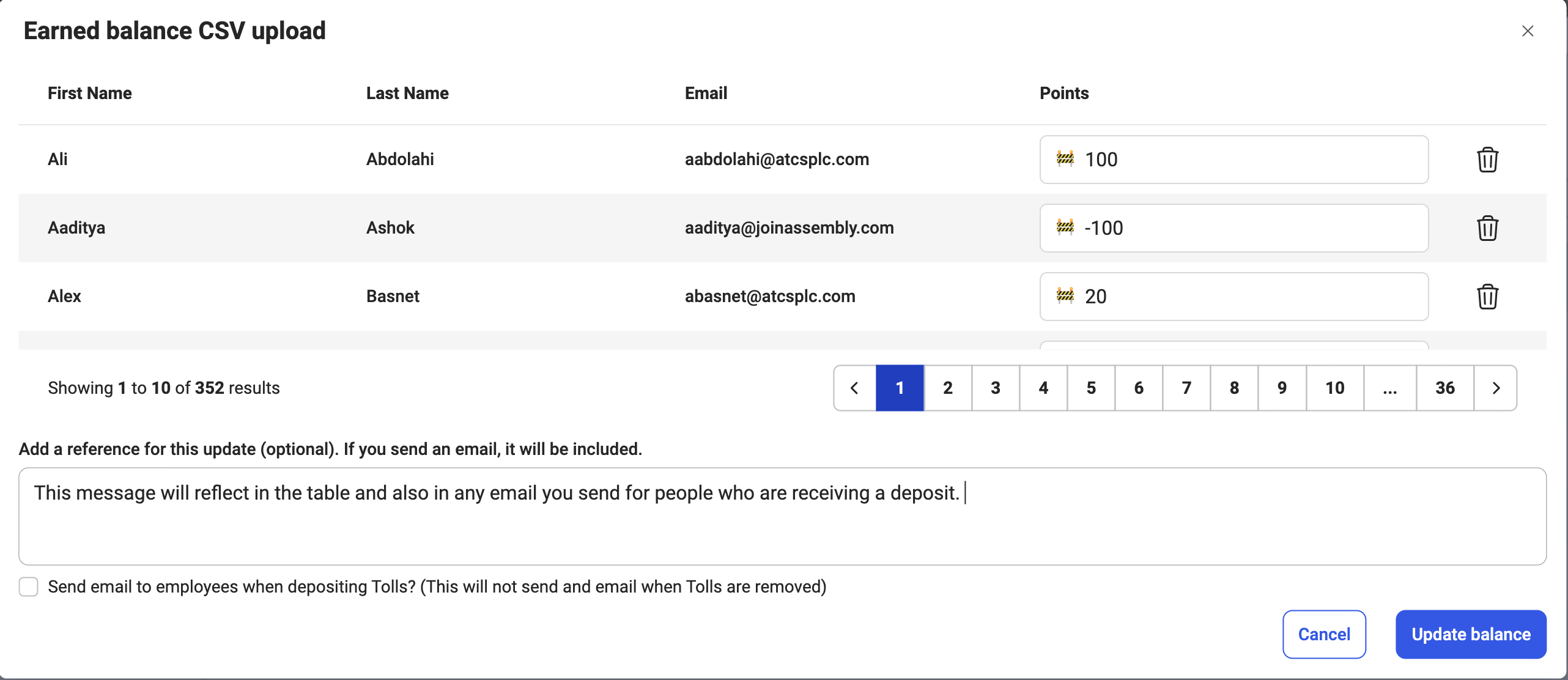
This will display the CSV upload confirmation screen
You can confirm or make any last-minute changes to the points value from this screen
Enter a reference message (this is optional)
However, we recommend including a reference so you can refer to it when looking at the historical record of all deposits/removals in the table
If you are depositing points, you select whether you want to send an email to notify the recipients that they have received extra points they can redeem for rewards
If you are removing points, we will never send an email
Click 'Update balance'
Upon clicking 'Update balance', the recipient(s) will receive the additional points in their earned balances (and an email if you chose to send one).
THIS UPDATE MAY TAKE A FEW MINUTES TO REFLECT IN THE TABLE
NOTE: This will add/remove points to their existing earned balance. So, for example, if they had 100 points, and you added 100 points, their new earned balance would be 200. If you removed 100 points their new earned balance would be 0.