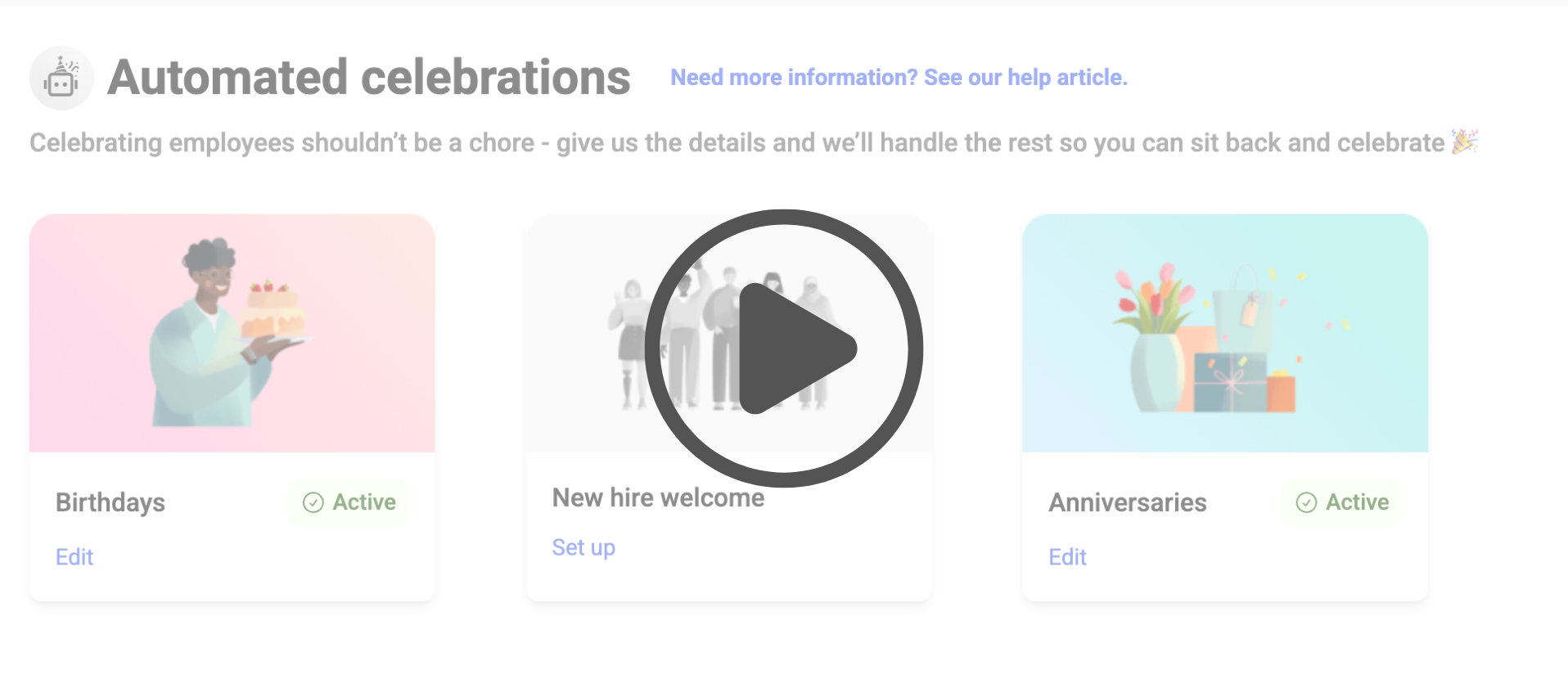
Only admins can set up and manage automated birthday celebrations
When the celebration is enabled, your employees will receive the birthday message on their birthday
The employee must have their birthday date added to their profile in order to receive the birthday message
If it is not there on the day of the birthday, the message will not send
The birthday message will go out at 9:00AM in the designated time zone, for all employees with birthdays that day (regardless of what time zone they are in)
Employees whose birthday it is will be notified of the birthday message via email as well as in Assembly in the notifications page
Their direct managers of the employees will also be notified
The birthday message will appear as a post in the home feed
Go to your admin page
Select Automated celebrations -> Birthdays
Select how many points you would like to give your employees on their birthdays
If you do not want to add a reward to the celebration message, enter 0 for the value
If 0, there will be no reference to points in the birthday post or email
When the birthday message is posted, the points will automatically be deposited in the new employee's earned balance
If your recognition settings are configured to hide points from all posts, the point value will only be visible to the recipient and to all admins
We provide a few default images you can choose from, but you can upload your own for ultimate customizability
You can also click Choose image from library to browse default image options
To upload your own, click Upload your own in the Banner image section
The message you include here will be the message that all new employees receive in their birthday post. You can customize it using some of our dynamic variables:
Employee first name - will include the first name of the new employee
Employee full name - will include the first and last name of the new employee
Birthday reward - will include the total # of points and the currency name (i.e., 10 Carrots)
NOTE: do not use this variable if your recognition settings are configured to hide points, the point value will not be hidden if this variable is used
Also, do not use this variable if your reward amount is set to 0/you are not giving a reward with this post
Company name - will include the name of your company as it is shown in Assembly
Years of employment - will display the # of years the employee has been at your organization, in the format of ‘# year’ (i.e., ‘2 year’, ‘1 year’)
Email from name
Customize the name of who the message is from
This name will only appear in the email
If you would like to include a GIF with your birthday message, enable the 'Display GIF' toggle
If you would like to use different GIFs for each post, you can select up to 10 GIFs
When more than 1 GIF is selected, the GIFs will rotate for each new employees' birthday message
If you do not want to include a GIF, simply turn this toggle off (the message will still send)
You can choose to hide the message + GIF in your posts in the feed (for additional flexibility to keep your posts shorter and more focused)
If you choose to hide the message + GIF in your post, it will still appear for all recipients in the email
You can choose the time of day and in which time zone you would like the birthday posts to send
This will send all birthday posts for that day, at that specific time, for all employees (even if the employees are in different time zones)
If an employee’s birthday date falls on a weekend, you can choose to send the post on the Friday before or Monday after
If Friday before is selected, if the employee’s birthday falls on a Saturday or Sunday, it will send their birthday celebration post on the Friday before, along with any other employees’ posts who have a birthday on Friday
If Monday after is selected, if the employee’s birthday falls on a Saturday or Sunday, it will send their birthday celebration post on the Monday after, along with any other employees’ posts who have a birthday on Monday
If you select ‘yes’, all employees will be able to boost their replies to the post with extra points for the new hire
If you select ‘no’, employees will not see the option to add a boost
NOTE: This setting is independent of your recognition settings for boosting; if you have boosts enabled for recognition and disabled for the new hire birthday post, they will only be disabled for new hire birthday posts.
If set to Everyone, all employees in your organization will be able to see the post in the feed
If set to Private, only the recipient and admins will be able to see the post in the feed
If you want to turn off or pause the new hire birthday automation, without losing any of your birthday message settings, simply toggle OFF the automation at the top of the page
When the automation is off, new employees will not receive their birthday message.
You can view all upcoming birthday messages for the current month, as well as all birthday messages that have been sent (or did not send). If a message did not send, you can easily resend it with a simple click!
From the Employee birthdays tab:
By default, we’ll show you all birthdays for the current month
You can filter by any month within the previous 12 months
We will show upcoming birthdays within the next 30 days
All upcoming birthdays within the next 30 days will show with an Upcoming status
All birthdays in the past will display with a Sent status if successfully sent
Any birthday post that did not send will display with a Not sent status
Clicking Resend will send the birthday message and email to the recipient
You can quickly filter to see all Sent messages by applying the Sent filter (this will exclude any messages that did not send, as well as any upcoming birthdays)
You can quickly view the full list of employees who do not have a start date associated to their profile by selecting the Employees missing start date
Click Add start date to easily add a start date to the employee’s profile