All employees who are a part of your Assembly will be able to give recognition and use Assembly directly in Teams
Once the app is successfully installed and connected, all public recognition posts will appear in the ‘Posts’ tab in the connected Channel(s)
Private posts will appear as a direct message in the Assembly ‘Chat’ conversation
You will receive a notification directly in Microsoft Teams whenever you receive recognition
You can give recognition directly from your Assembly ‘chat’ conversation using our app’s shortcut
You can also use the full Assembly platform directly in Teams on the ‘Assembly’ tab
The Assembly app can be accessed and used in three different ways
Every single user will see Assembly appear under the ‘Chats’ section. This will contain a ‘Chats’ tab and the embedded ‘Assembly’ tab. The chat tab is unique to each individual person and is not a shared chat.
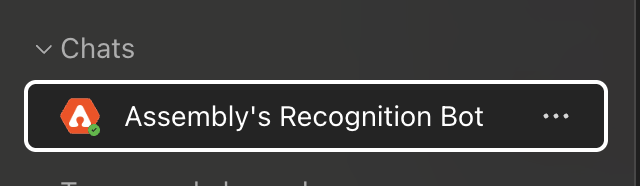
From the ‘Chat’ tab you can:
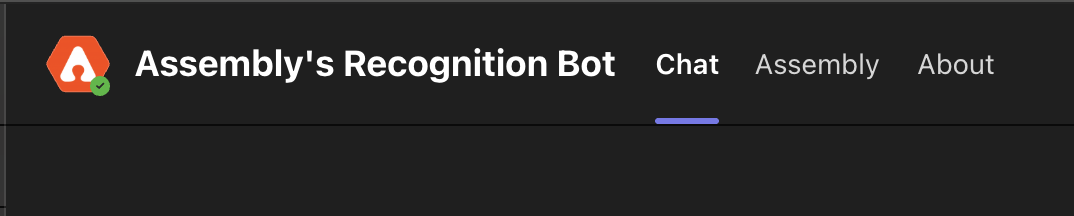
Give recognition directly within Microsoft Teams outside of using the Give Recognition command
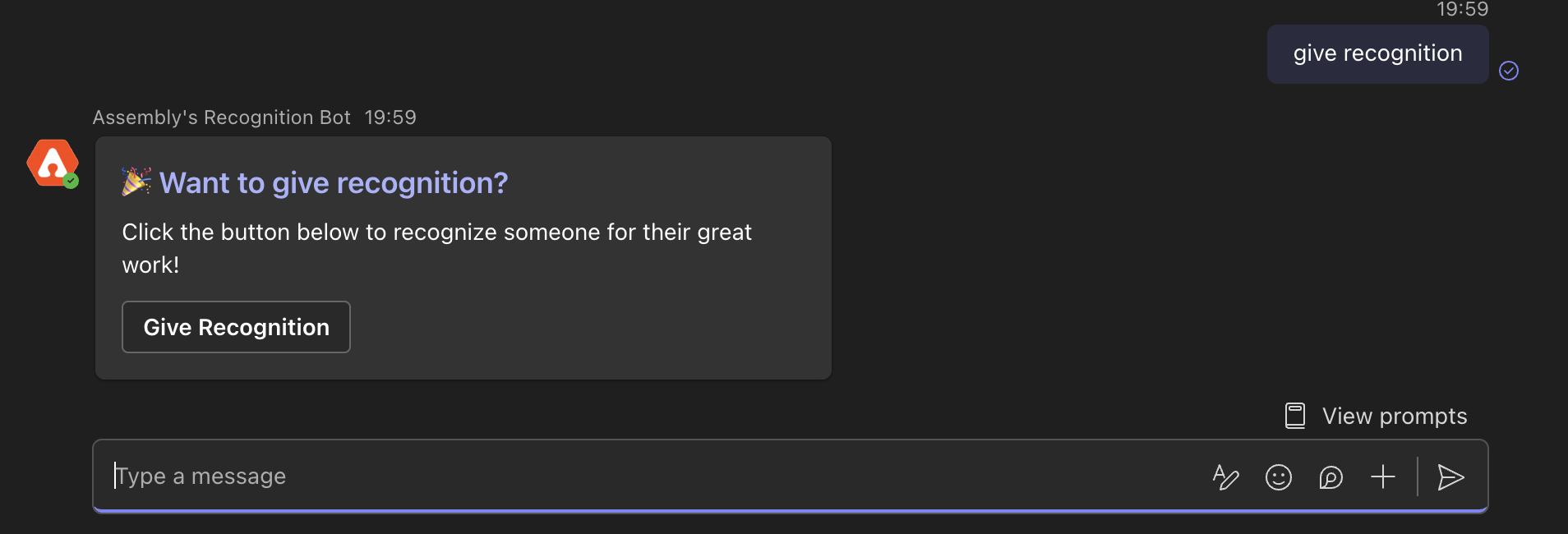
Simply type in ‘Give recognition’ into the chat input, send the message
A message back will pop up with a button to ‘Give recognition’
Click ‘Give recognition’
Fill out all required fields
Click ‘Send recognition’
This post will appear in the ‘Posts’ tab in the channel you connected, as well as in the feed of the ‘Assembly’ tab
If you give or receive recognition privately, the post will appear in the ‘Chat’ tab in this ‘Chat’ section (since the ‘Posts’ tab is public/visible to everyone in the group)
The private recognition will also appear for all recipients in their respective ‘Chat’ tab
The post will also appear in the feed in the ‘Assembly’ tab, but will only be visible to the giver, the recipient(s), and the admins of your Assembly
From the Assembly tab you can:
Use the full Assembly platform, including giving and receiving recognition, among other features
In the selected channel from step one you will see the standard ‘Posts’ tab as well as the above mentioned ‘Assembly’ tab
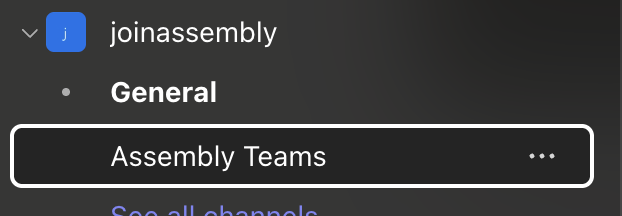

From the ‘Posts’ tab you can:
View all public recognition given in your Assembly organization
NOTE: you cannot give recognition like you can from the ‘Chat’ tab from within the ‘Posts’ tab (this is a current limitation from Microsoft Teams)
From the ‘Assembly’ tab
It will work the same as it does above
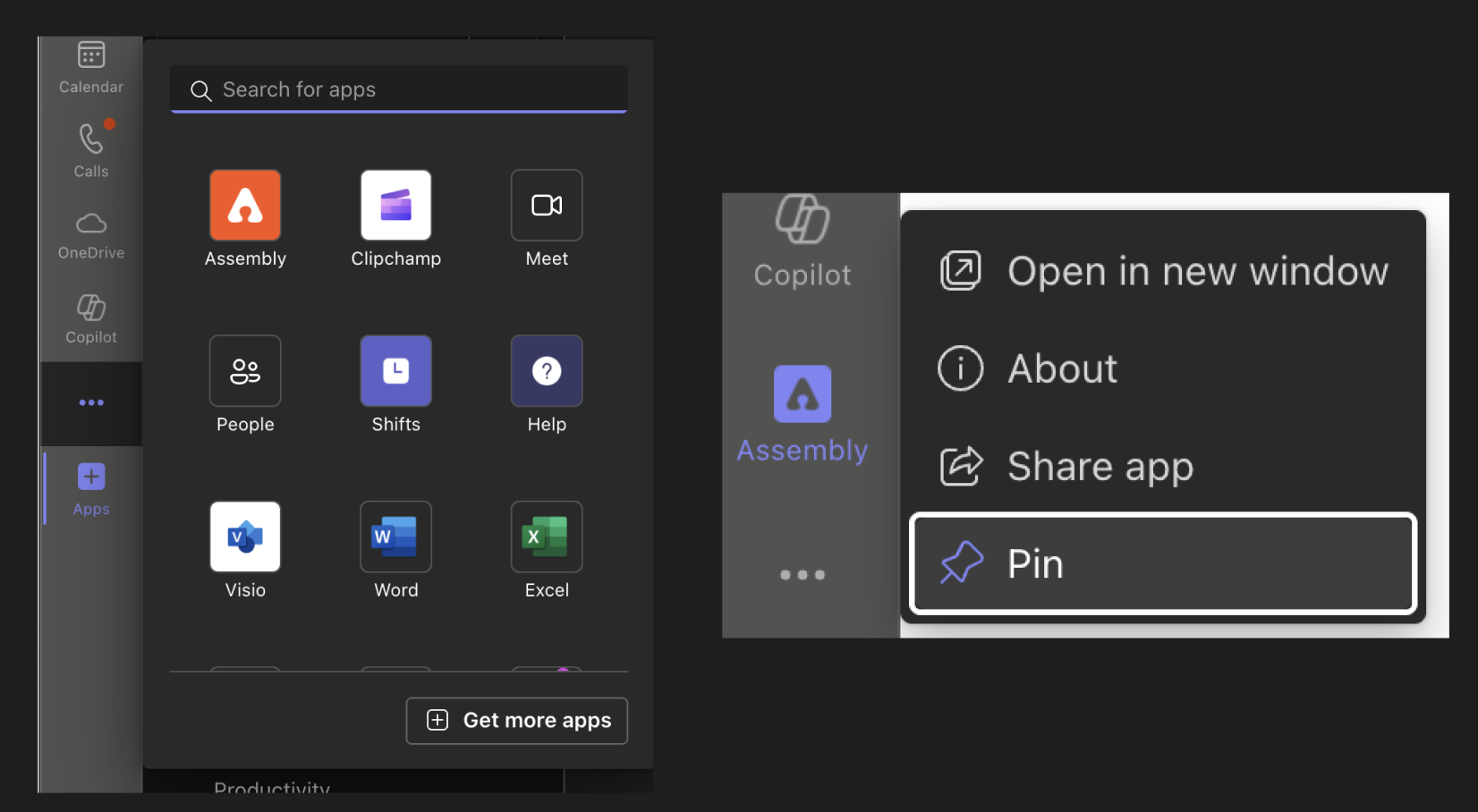
You can access the Assembly app from the left navigation by
Clicking the ‘…’ icon
Selecting ‘Assembly
Right click the Assembly app icon
Click ‘Pin’
It will stay pinned to your left nav
The Assembly app will have the same two tabs (Chats and Assembly) as #1 above
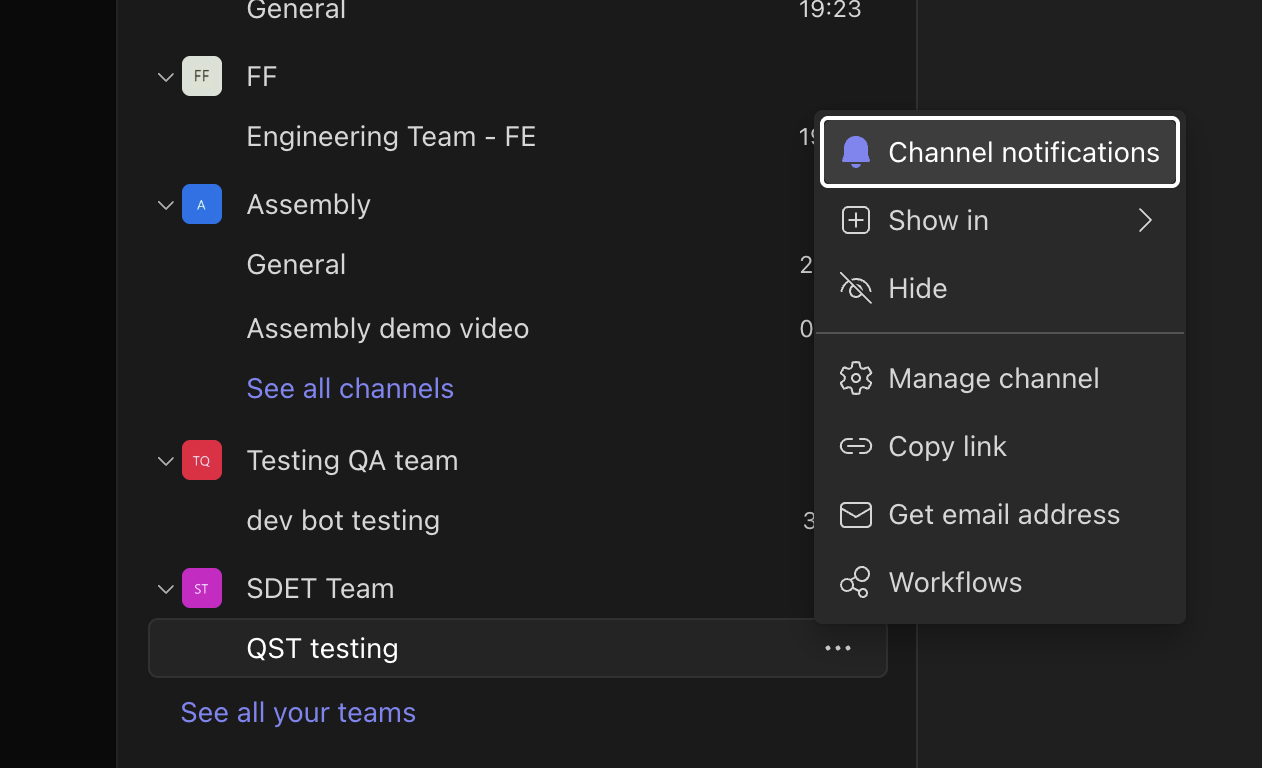
You will be notified of channel activity in Teams based on your channel settings.
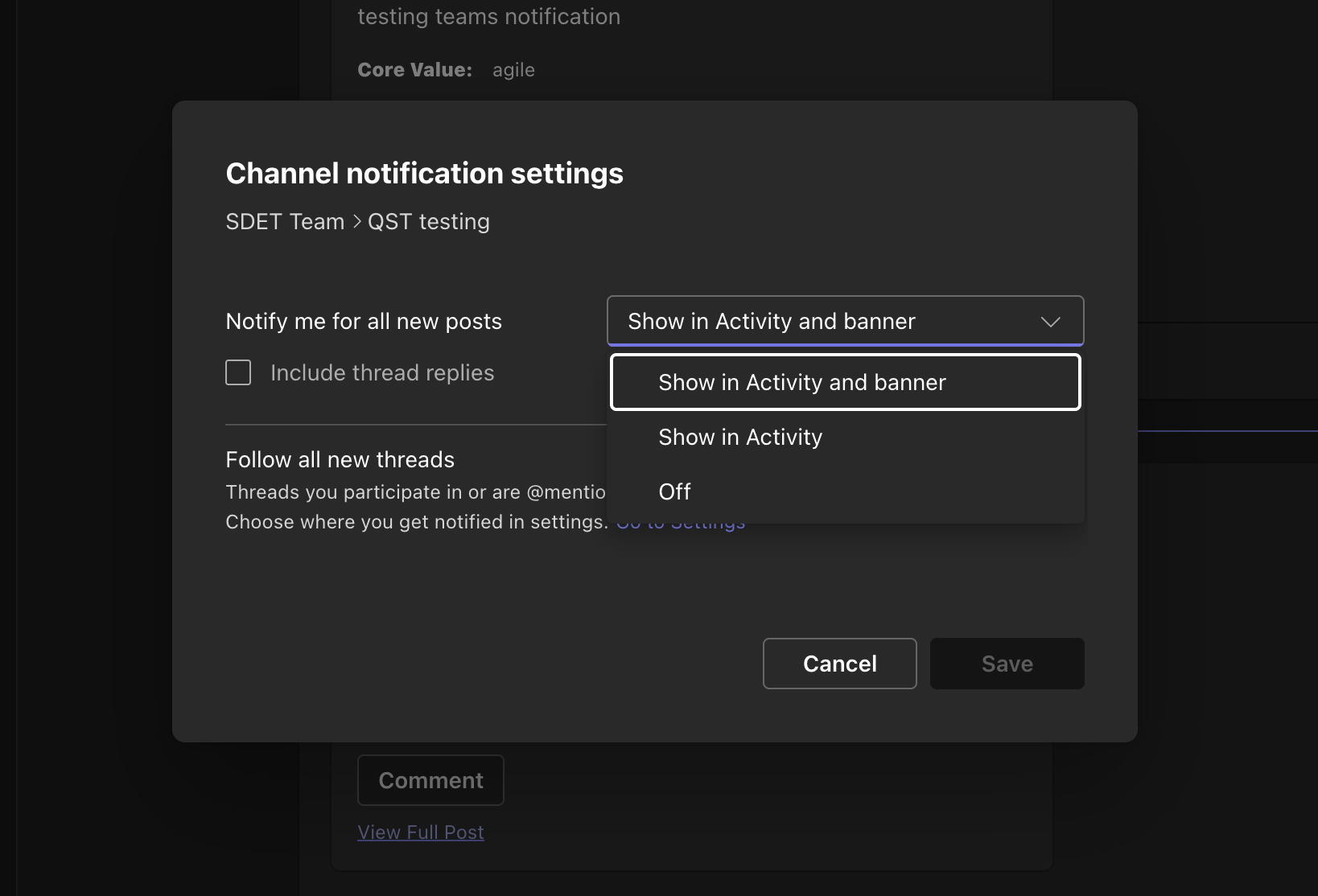
If you wish to only receive notifications for only your activity, make sure your channel notifications settings for ‘Notify me for all new posts’ are set to ‘OFF’
This will ensure you are only notified for only the activity that directly involves you
If you wish to be notified of every single post in the channel, select ‘Show activity and banner’ or ‘Show in activity’
The chat tab is an important source for many things:
This is where you go to give recognition directly in Teams, outside of the ‘Assembly’ tab (instructions in the ‘Chat’ section above)
Any time you receive recognition or an award privately, it will appear in the ‘Chat’ tab (instead of the ‘Posts’ tab)
All notifications for our ‘Challenges’ feature appear here (these are direct messages that are unique to you)
Any time an announcement is shared with a specific group you are in (versus shared with the entire organization), it will appear in the ‘Chat’ tab
Any future product notifications that alert you to important activity in Assembly will appear in this ‘Chat’ tab
All public recognition, birthday/work anniversary/welcome posts, awards, and announcements posts will appear in the ‘Posts’ tab