Only admins can install and connect their Assembly account to Microsoft Teams
All employees who are a part of your Assembly will be able to give recognition and use Assembly directly in Teams
All plans can connect their Assembly account to MS Teams
You can connect to both MS Teams and Slack at the same time
Once connected, you can choose to send all Assembly posts to a single channel, or route each post type to a separate channel
You can edit your channel settings or disconnect at any time
Only public channels can be connected. Private channels are not supported.
Once the app is successfully installed and connected, all public (visibility = everyone) posts will appear in the ‘Posts’ tab in the connected Channel(s)
Private posts will appear as a direct message in the Assembly ‘Chat’ conversation
You will receive a notification directly in Microsoft Teams whenever you receive recognition, an award, when it’s your birthday or work anniversary, for any challenge(s) you are a part of, when an announcement is posted
You can give recognition directly from your Assembly ‘chat’ conversation using our app’s shortcut
You can also use the full Assembly platform directly in Teams on the ‘Assembly’ tab

This channel will contain two Assembly-specific tabs:
‘Posts’ - which is a standard tab for channels, but this tab will display all of the (public) recognition posts posted in your Assembly
‘Assembly’ - this is a fully-functional embedded view of Assembly directly within Teams
You can create a single channel for ALL Assembly posts types, or create separate channels for:
Recognition
Awards
Birthday celebrations
Work anniversary celebrations
New hire celebrations
Announcements
To create a new channel:
Choose the team you wish to create the channel for
Click the ‘…’ menu
Click ‘Add channel’
Add the channel name, description, channel type, layout
We recommend STANDARD channel types
Layout MUST BE POSTS. If you select ‘Threads’ the app will not work as expected.
Click ‘Create’
This step happens in your Assembly admin page.
After authorization, you will see Team settings with the question: "Which team do you want Assembly to be in?"
You must select the same team under which the channels exist from step 1 above. If you select a different team than this, you must repeat step 1 above and create/select channels from that team.
The Channel settings section will expand once a Team is selected.
Under Channel settings, you will see two options:
Separate channels: Send each post type (Recognition, Awards, Birthday celebrations, Work anniversaries, New hire celebrations, Announcements) to its own Teams channel. This is the default for new connections.
Single channel: Send all Assembly posts to one Teams channel. This is the default for existing connections set up before this feature.
You can switch between these options at any time.
Select Separate channels tab.
You will see a list of post types enabled in your Assembly. Post types marked with an asterisk (*) are required.
For each post type you can:
Select an existing channel from the dropdown, or
Create a new public channel by typing a name and clicking create a new channel. You can also select No channel for optional post types.
If a post type is not yet activated by you in your Assembly, you will see an Activate link next to it. Click it to go to that feature's settings page and turn it on.
Click Save.
NOTE: If you select the same channel for all post types, Assembly will prompt you to switch to single channel mode.
Select Single channel tab.
Select an existing channel or create a new channel where you want all Assembly notifications to be shared.
Click Save.
If you did not create your desired channel(s) in step 1 above, you can create a new channel following the steps below;
Type the channel name in the input field.
If no exact match exists, click Create a new channel from the drop down list.
If you know the channel exists in Teams but you do not see it in the list, click Refresh channels at any time to pull in the latest channels associated to that Team
Assembly will validate the name and create a public channel within the selected Team in MS Teams.
All members who are part of your Assembly will be added to the new channel automatically. This runs in the background and may take 1 to 2 minutes.
If some members failed to be added during this initial sync, we will display a notification which includes the list of members who did not get added.
Assembly setup
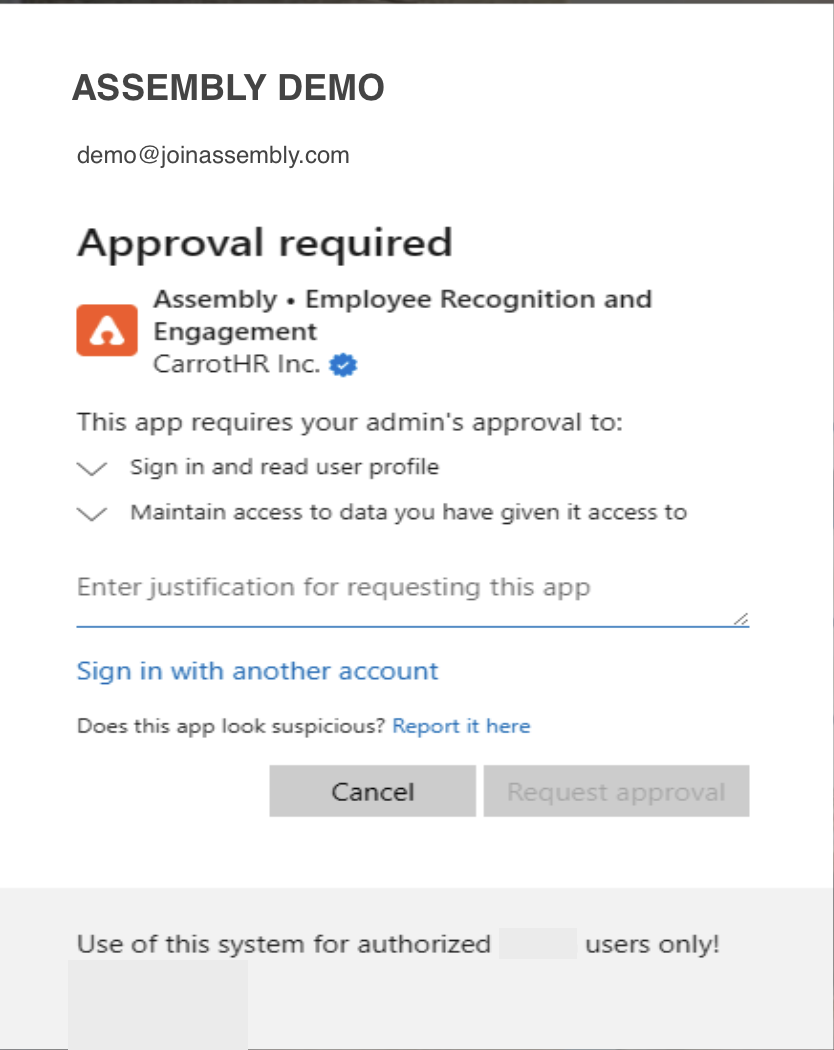
Request approval within Assembly
Log in to the Assembly platform using an administrator account.
Navigate Assembly Admin > Accounts > Integrations to the MS Approval screen within Assembly.
Submit for Internal Approval:
Enter the required justification for the integration.
Request approval from your internal organizational administrator
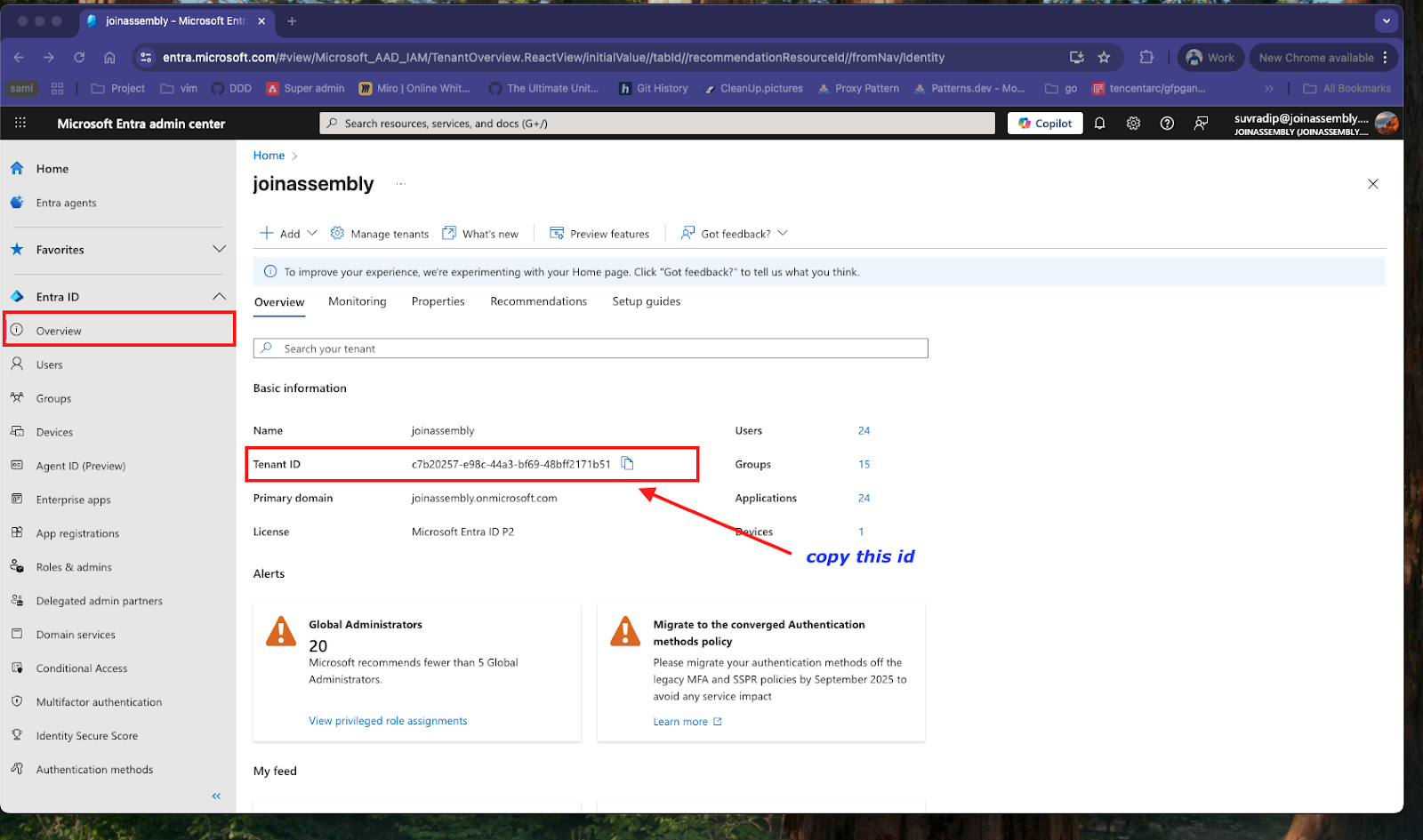
Retrieve the tenant ID
Access Microsoft Entra Admin Center:
Open the following URL in your browser: https://entra.microsoft.com/#home
Copy the Tenant ID:
Once logged in, locate and copy your Microsoft Entra Tenant ID. (The location of the Tenant ID is typically visible on the main 'Overview' page or 'Tenant properties'.)
Authorize Assembly application login
Prepare the Authorization URL:
Use the copied Tenant ID to replace <TENANT_ID> in the URL below.
Authorization URL Template:
Execute Authorization:
Make sure the Assembly app approval process is done
Log in to the Assembly platform using an administrator account.
Open the modified URL in a new tab window aside from the Assembly tab.
Follow the prompts to grant the necessary permissions.
Once you are connected to this channel in Assembly, you will need to install the Assembly in each Teams channel selected in step 2 above:
From within your desired channel(s), or from the left navigation on your Teams app, click the Apps ‘+’ icon
At the bottom left of the Apps window, click ‘Manage your apps’
Click ‘Get more apps’
From the left-side menu, search for ‘Assembly’
Click ‘Add’
From the next window, click ‘Add’
You’ll see a success screen with an ‘Open’ button, DON’T CLICK THIS YET! First, select the channel
Select the channel you created in step one/selected in step 2, and click ‘Go’
From the final screen, selecting ‘Post to the channel’ will notify everyone in the channel that you have added the Assembly tab to the channel
Click ‘Save’
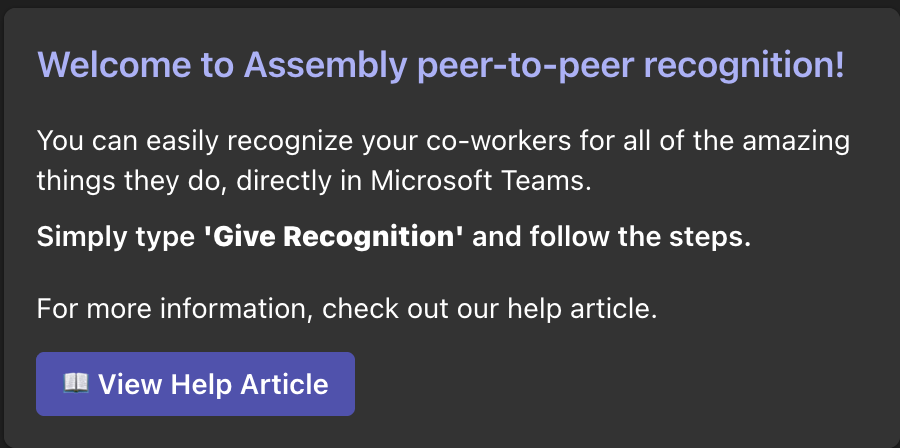
This will take you to the Assembly tab where you can use the platform directly in Teams. You should see a welcome message appear in the ‘Chat’ message for Assembly, and the Assembly tab should appear in the connected channel.
If you do not see this welcome message, this means there has been an error in the app installation. In which case you should uninstall and try again.
See the ‘How to use Assembly’ section below for how to use Assembly in Teams.
You should be automatically prompted within Microsoft Teams to update your Assembly app to the latest version. Once you have updated the app within Teams, you must complete steps 2 & 3 above to complete the installation of the new app.
If you run into any issues, or you are not prompted to update the app, please try uninstalling the old app and reinstalling the new app:
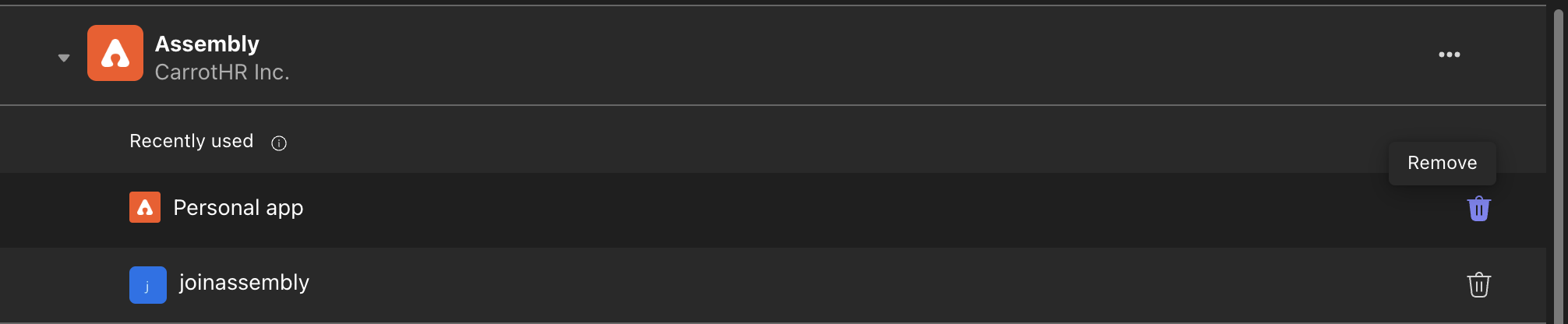
From the left navigation on your Teams app, click the Apps ‘+’ icon
At the bottom left of the Apps window, click ‘Manage your apps’
Find the Assembly application and delete/remove it from all places where it has been added
Once it is removed from all places, the app will be uninstalled
Once uninstalled, please follow the above steps 1-3 to reinstall it
Public posts go to the configured channel that you saved.
Private posts go as a direct message (DM) to the recipient via the Assembly bot, not to any channel. DMs will only be delivered if the recipient has the Assembly app installed in Teams.
If you want to edit or disconnect your MS Teams integration, follow the below steps:
Go to the Admin account
In the left-hand menu, click Account → Integrations
Click Settings next to MS Teams.
Update your Team selection or channel configuration and click Save to apply changes. If you leave without saving, a prompt will ask you to confirm.
Click Disconnect to remove Assembly from your MS Teams workspace. A confirmation will appear before the connection is removed. Members will no longer receive Assembly notifications in Teams.
MS Teams does not notify Assembly when individual channels are archived or deleted. If notifications stop for a specific post type, check whether the configured channel still exists and update your settings if needed.
If a Team is archived or deleted, Assembly will show a warning on the Integrations page. Notifications will stop until you select a new Team and channels.
If a channel is renamed, Assembly updates the name automatically.